Hi,
Thanks for Evermotion team for this great site and Thank you to all who gave me feedback and encouragement.
I will try to tell you my Making Of Story for my Bedroom Concept. I hope you find my tutorial useful.
I believe that making sketches is a vital step in designing architecture
or objects ; as well as for designing the images. For this bedroom, I
took a slightly different workflow. I can call it "sketching in 3d"
First, I had vision of this bedroom on my mind. I was imagining the sun
falling down into the room, I was imagining about the wallpaper and bed.
All of this formed a strong and clear vision and I found myself
choosing chairs for my virtual bedroom, and designing some of the
furniture myself.
After making few basic sketches of furniture I design, I started
building/modelling the room. Sketching in 3d, provided a lot of space
and time for me to concentrate on forms, surfaces, materials. As I was
modelling each element, at the same time I was thinking of each element
as a part of the whole, and concentrating on the whole design.
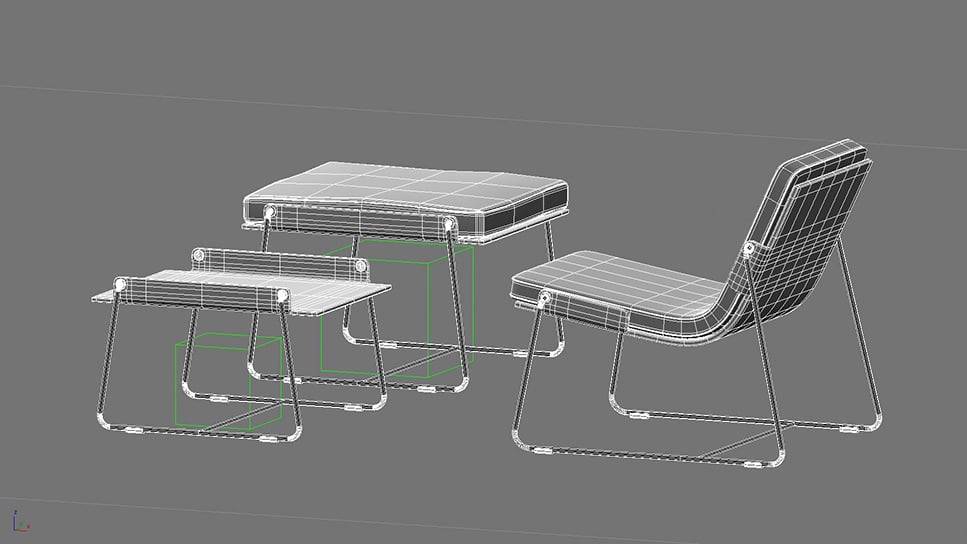
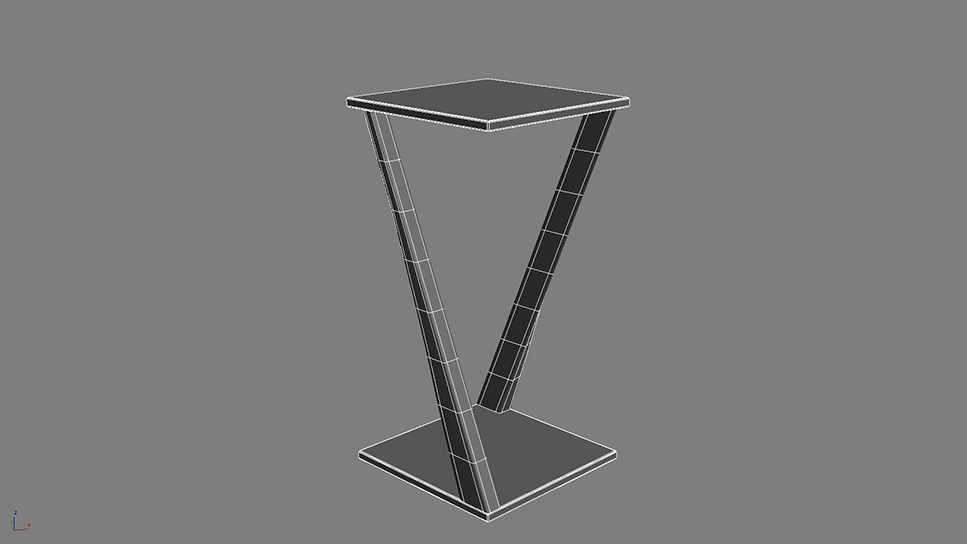
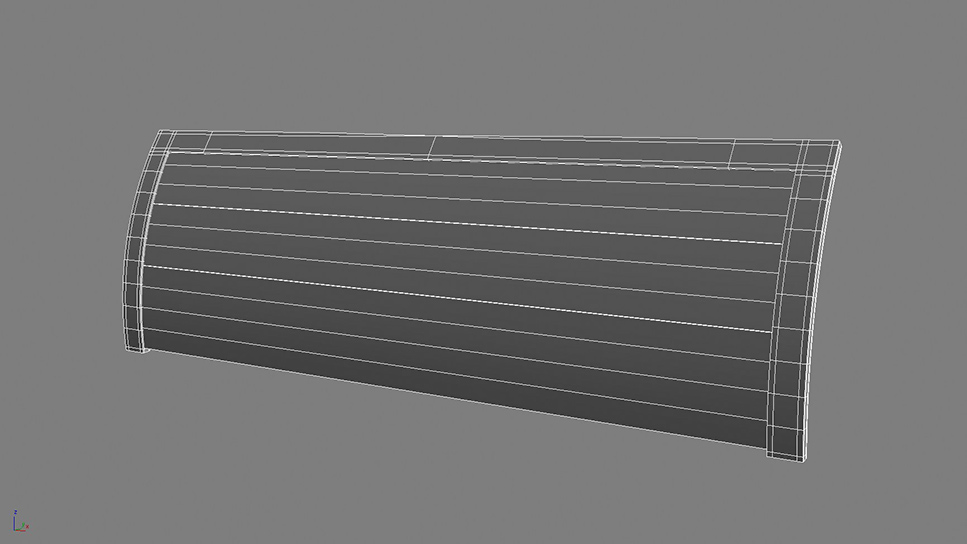
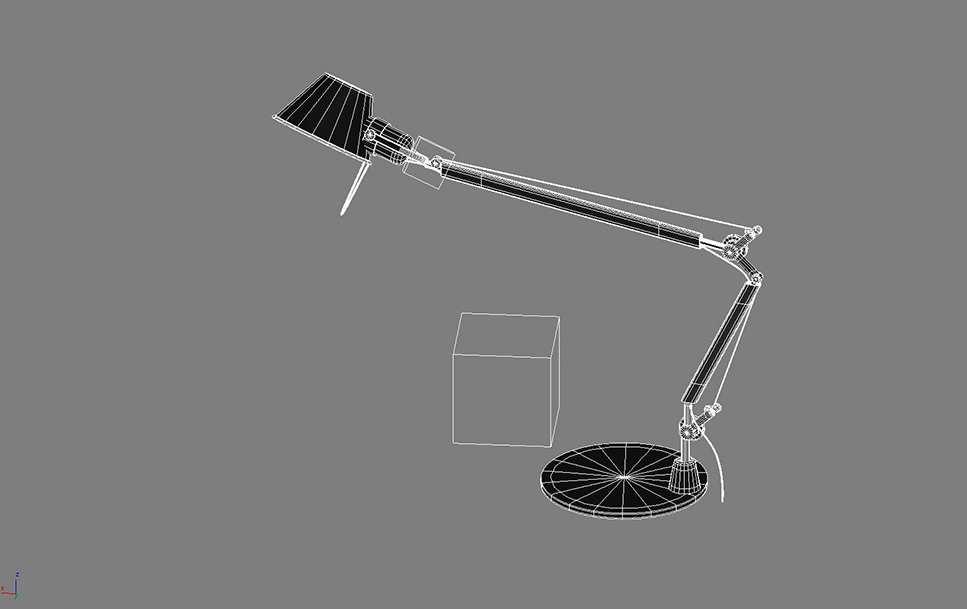
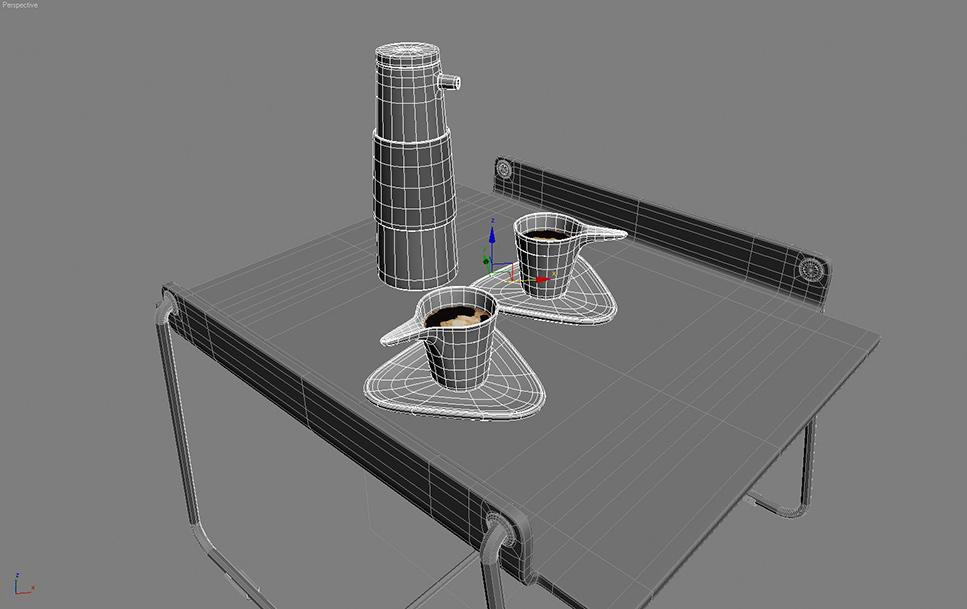
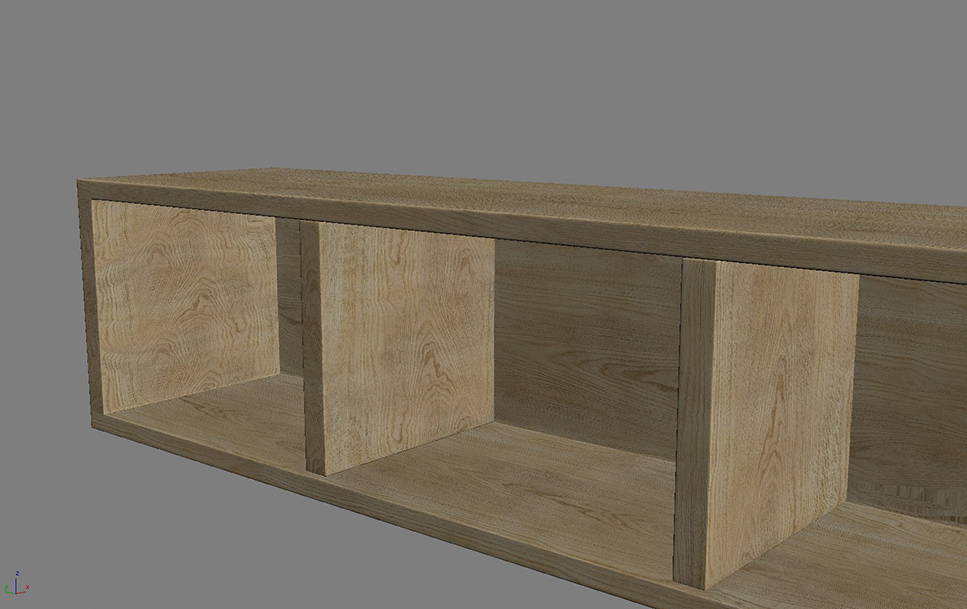
Most of the models of basic poly-modelling as you see in the images.
Poly-modelling is a strong tool which I am learning myself as well. I
will not discuss the basic poly-modelling techniques inside this Making
Of Story as there are many tutorials about this.
Modelling the Bedcover :
I used Max Cloth Simulator for creating the bedcover and other cloths
except the pillows. Pillows are created with Simcloth plug-in, just for
experimenting. Both plug-ins give great results. The idea and workflow
is similar so you can carry out the same process with any of them.
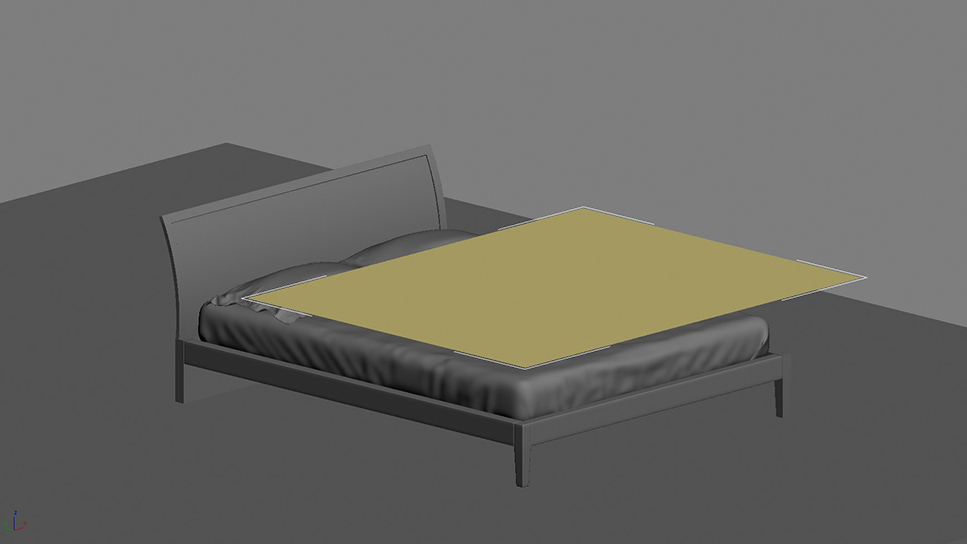
First start with a plane with adequate segments and apply cloth modifier
to this plane.
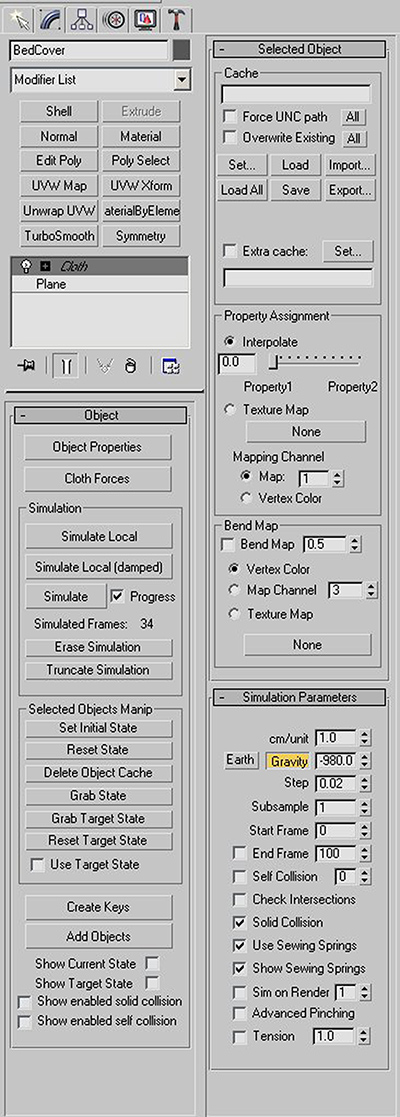
Go to Object properties and assign this object to behave as cloth during
simulation. Add all the rest of the elements that are part of the
simulation and assign them to be collision objects. Here in my example,
bed sheet, frames, bed feet and even floor is assingned to be collision
object as I didn't exactly know how cloth will fall. You can see all the
settings in the images below.
Now all you need to do is press "simulate" button and wait for the
bedcover to fall.You don't even need to animate the cover because it
will fall down automatically due to the gravity. I saved the simulation
as a video to give you an idea.
Before starting texturing work, I always try to make up a basic light
setting to test my shaders and to see how my textures look. I find the
daylight setting best for my purpose. I usually make a "final lighting"
stage after I put my shaders and textures. For this project, "final
lighting" was not necessary as I always imagined this bedroom in a
bright sunny late morning. Some little tweaks was enough at the final
lighting stage. I use Vray for my rendering and I love it so much. So
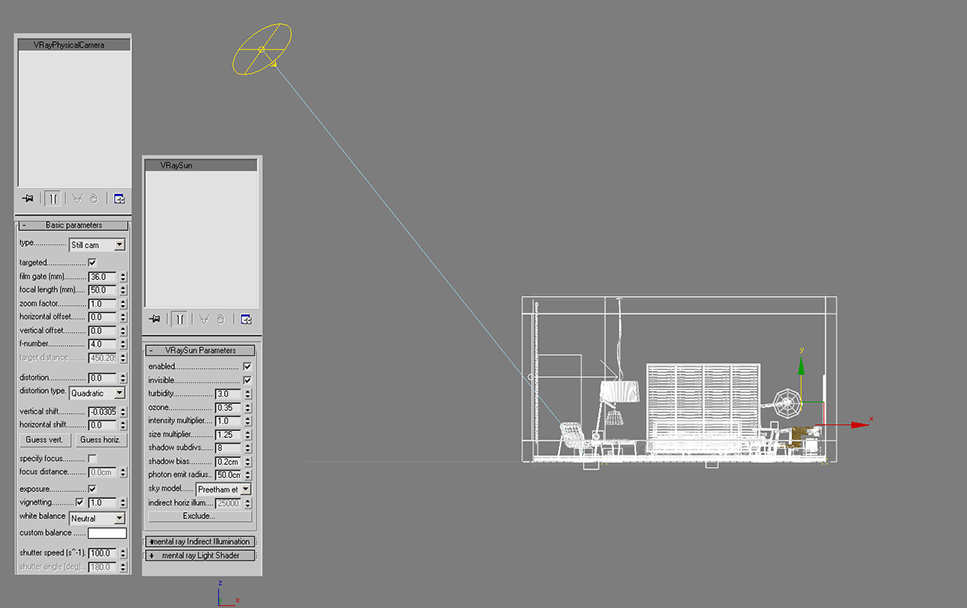
for my daylight, I used the VraySun-VraySky and the VrayCamera. When
you add a VraySun in your scene, VraySky is automatically replaces the
Max Environment map and they are linked to each other so setting up my
lighting was very easy. Here are the settings and wireframe image:

When basic daylight was set, I moved onto the texturing step. I
downloaded many textures from www.cgtextures.com. This is a great site
with many nice free textures. I find it very useful.
90% of the objects have a basic UVW Mapping, standard planar maps, box
maps or cylindrical maps.
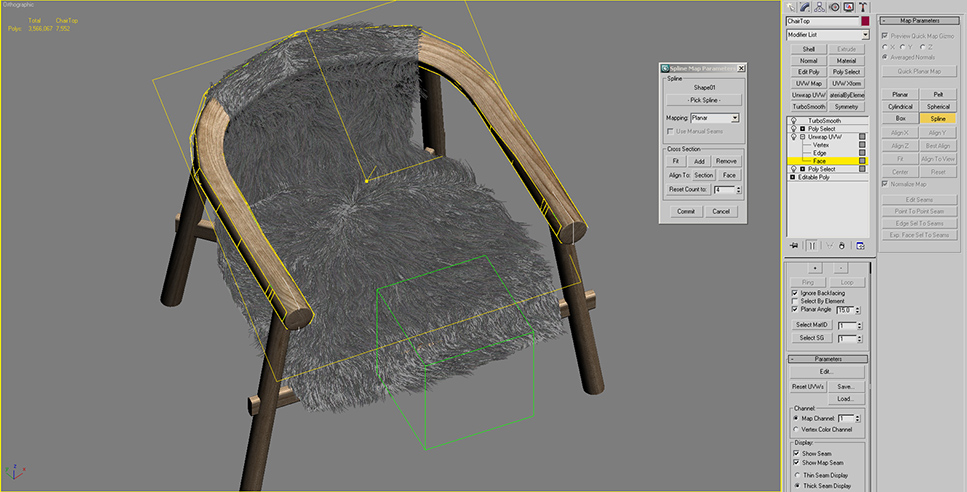
The round top element of the Fur Chair has an unwrap modifier. I used
spline mapping to adjust the UV coordinates of this part. It is very
easy and basic. After you create the spline to follow, you will pick it
up from the rollout. You can see my settings and you can see the spline.
(in white)
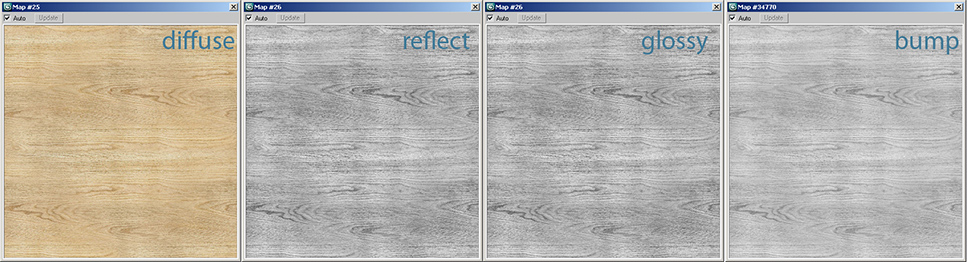
Below is one of the wood materials and its component maps. It is a basic
shader- only some tweaking and testing is needed. The rest of the
materials inside scene are on the same basis.
Creating the Wallpaper Texture
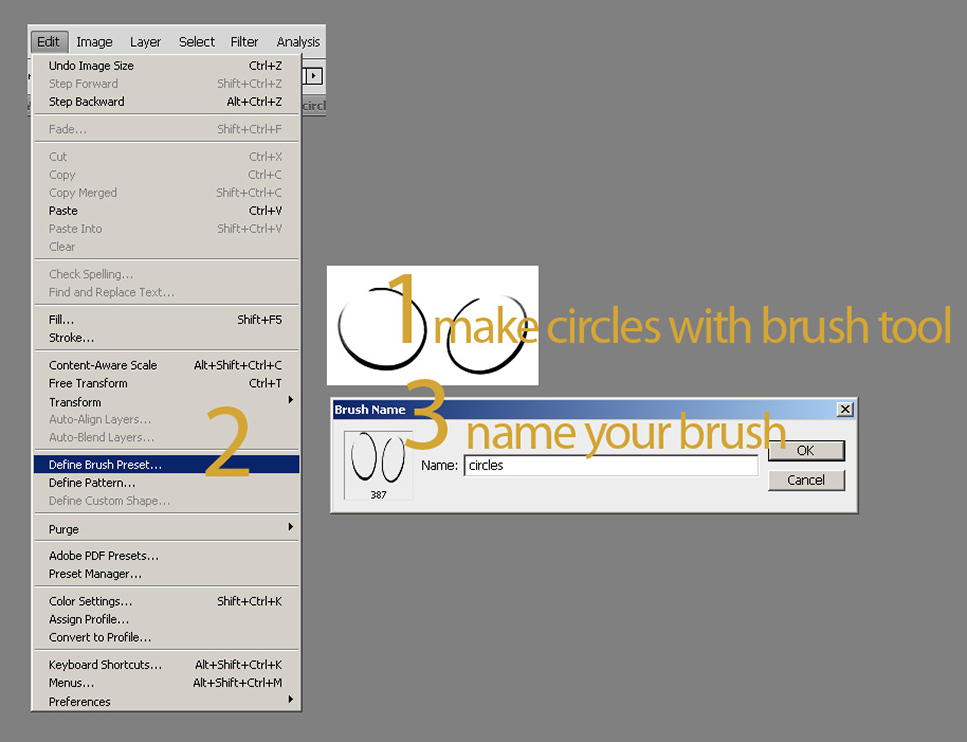
First make your own custom brush. Draw circles with a brush tool. You
can play with different settings of the brush to create the exact circle
you have on your mind.
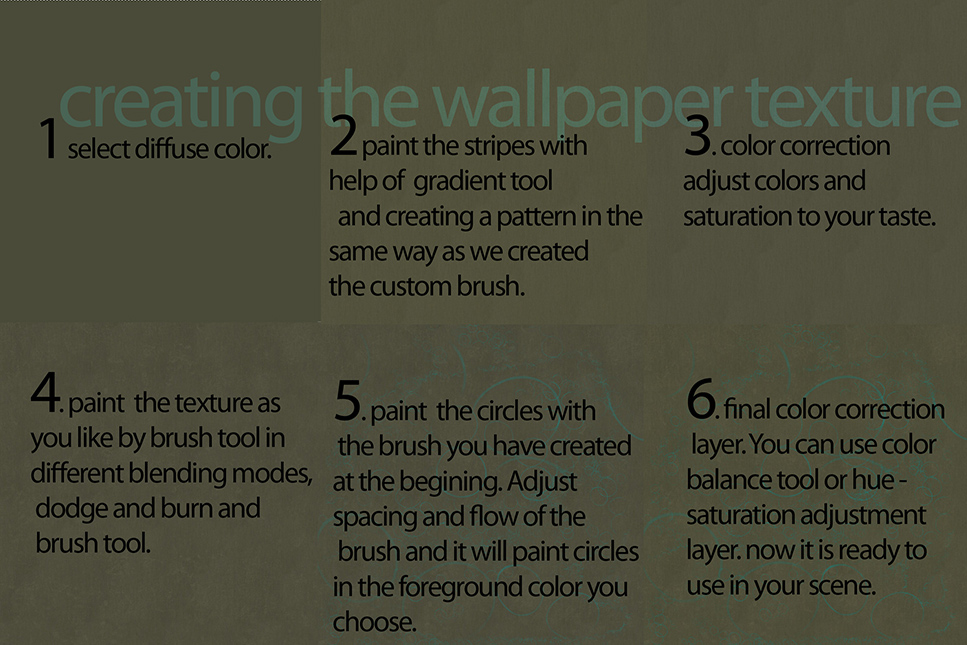
You can see the rest of the process in steps in the image below.
After I choosed my base color, I created a pattern on top of this
diffuse color out of gradient texture to give a touch sense in the 3rd
dimension on the wallpaper texture.
Color Correct: Then I had some color correction on this texture.
It was a subtle change but I am very picky about my colors so this
change was significant for me. You can make color correction with Hue
Saturation Adjustment Layer or Color Balance Adjustment Layer or Curves
Correction.
Hint: It is essential to use adjustment layers (and fun) because you can
easily change things without harming the original image and can always
revert back or change more.
Variance: What I had in mind was combination of a vintage base
with a more pure and stylised pattern on top. I wanted to create some
variance on my texture. You can easily make this by brushing in
different blend modes (usually in black or white in different opacity).
Another way to make this is to use dodge and burn.
Hint: I try to work everything on seperate layers so I can adjust the
opacity individually. Moreover it is fun to experiment with different
blend modes. So I made the new strokes on a seperate layer.
Circles: I changed my brush to the brush I have previously
created. I adjusted the flow and scattering and scale to have varying
rhytms of circles. Then I freely brushed on my canvas the circles. This
was the most fun part because circles interact and form very nice flows
and you can feel it under your hand.
Again, if you work on a seperate layer, you can manipulate this layer
with more control.
Moreover, having the circles on a seperate layer, will make it easier
for you to make the final color correction.
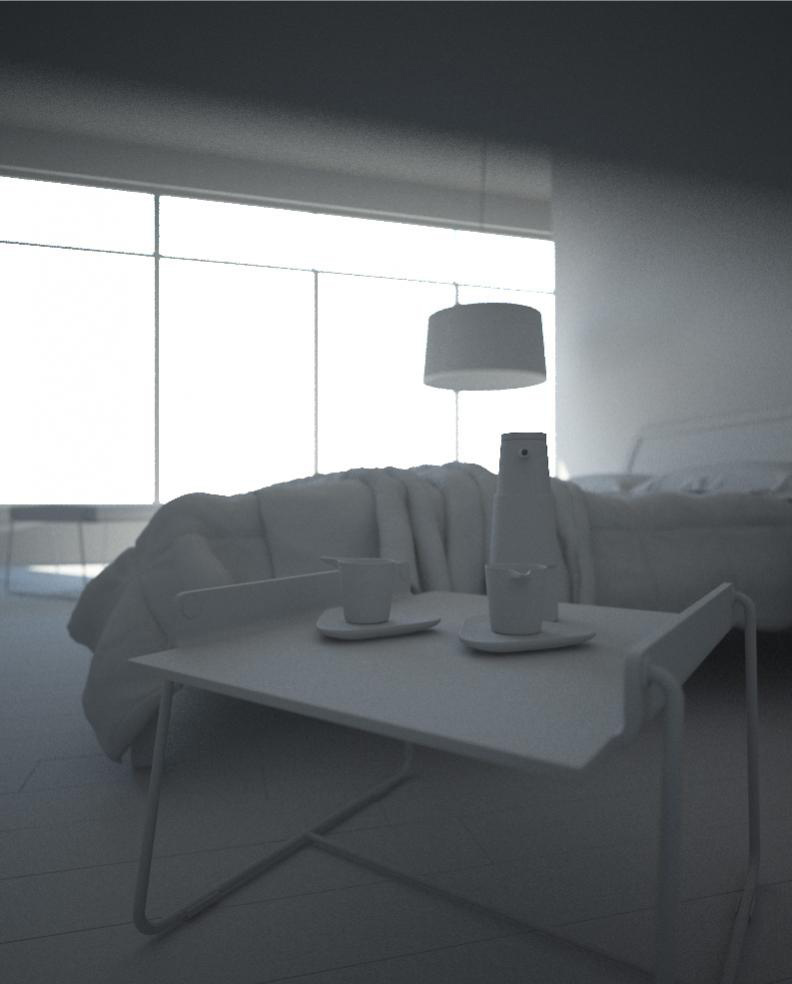
DOF
Using Vraycamera also gave me chance to experiment and get familiar with
VrayDOF. In future works, I want to experiment with DOF in
post-production but for this project I wanted to stick to VrayDOF which
is just a setting of VrayCamera. So it is easy to setup with one click,
but it is important to remember that it will increase your render times.
After making few basic tests,I kept this parameter off until the final
renders.
Hair and Fur
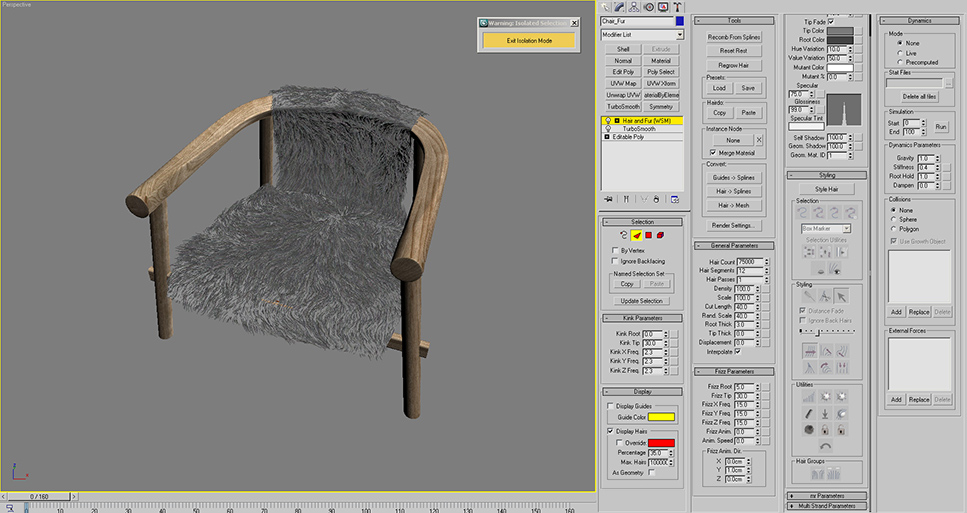
After I modeled the chair, first, from the modifiers panel, I added Hair
and Fur Modifier, which is under World Space Modifiers. You can see the
parameters I used in the image below.
The fur will not look like as you see in the image at first hand because
we have to "style" it. This step makes fur look realistic because we
comb the the fur as we like with a brush.
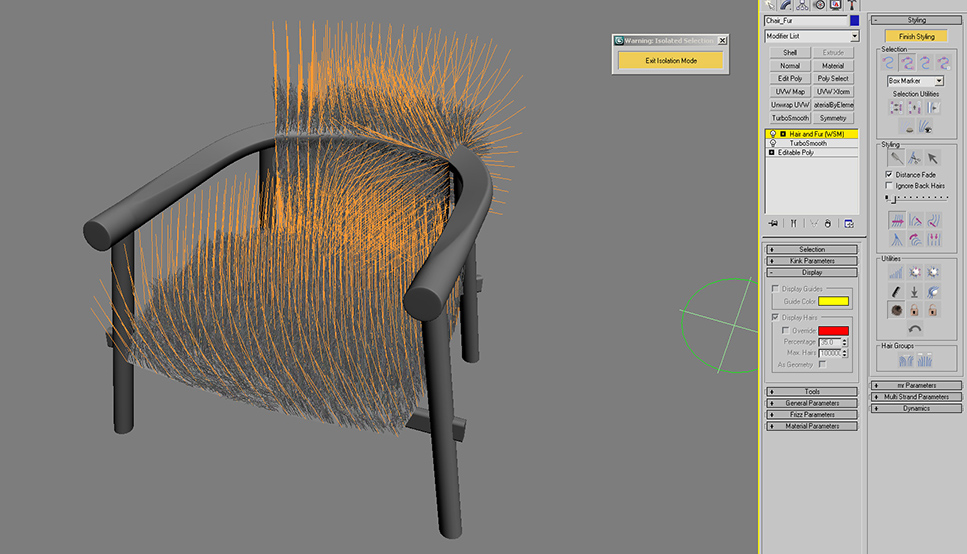
When we click on the "Style Hair" Button, you will see the hair guides.
We will shape these guides with our brush and our fur strands will
follow.
First start with adjusting the size of your brush.
You can select hair guides individually or in groups. The selection
menu is very detailed.
Hint: At first, I selected all guides and tried to give the general
look I wanted. (I will explain how to brush and style in the next part)
As the second step, I selected guides in groups and continued brushing.
For fine-tuning, you can even select edges or roots of hair or single
vertex like in sub-object mode.
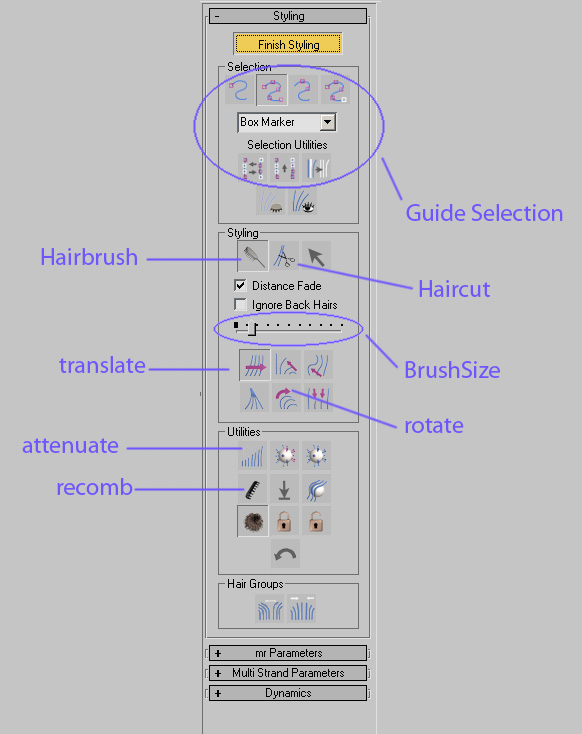
Under Style Roll-out, there are many tools as you see in the image. We will use some of them to brush our fur.
Here I paste some definitions of these terms from 3dsMaxHelp File:
- Hair Cut - Lets you trim the guide hairs. To cut hair.
- Translate - Moves selected vertices in the direction that you drag the mouse.
- Stand - Pushes selected guides toward a perpendicular orientation to the surface
- Rotate - Rotate or swirls guide hair vertices around the cursor location (at the center of the brush).
- Attenuate Length - Scales selected guides according to the surface area of underlying polygons.
- Recomb - Makes a guide parallel to the surface, using the guide's current direction as a hint.
- Clump - Forces selected guides to move towards each other (drag mouse leftward) or farther apart (drag mouse rightward).
Now you start styling, cut it where you need. As you brush, you will see
that fur changes shape. You can move the strands in any direction you
want, rotate them individually or in groups, clump them so they can move
towards like a bunch. You can shape up your fur according to your
imagination.
Hint: It is easier to understand when trying to make it. Here, it sounds
more complicated than it is. Start brushing and play with tools and you
will see you get nice results.
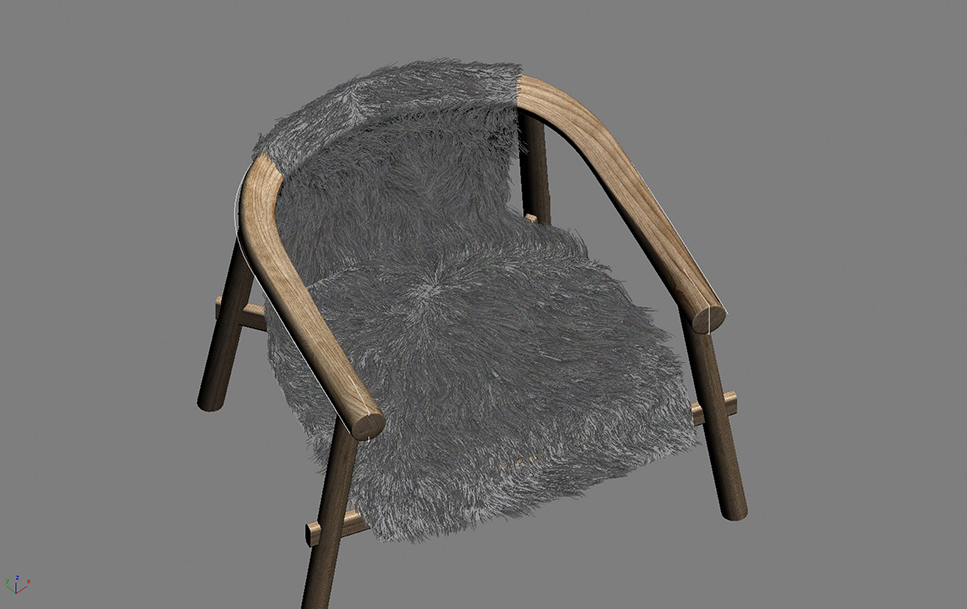
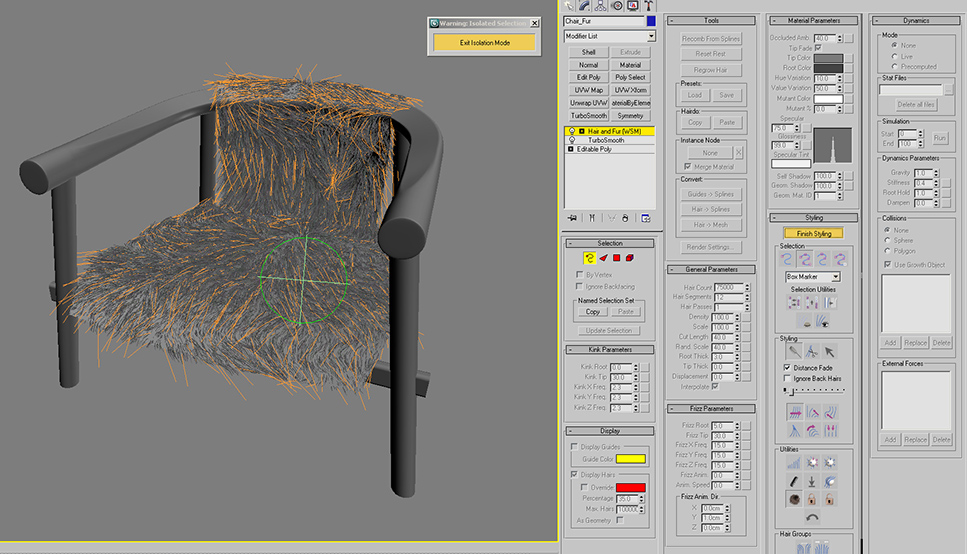
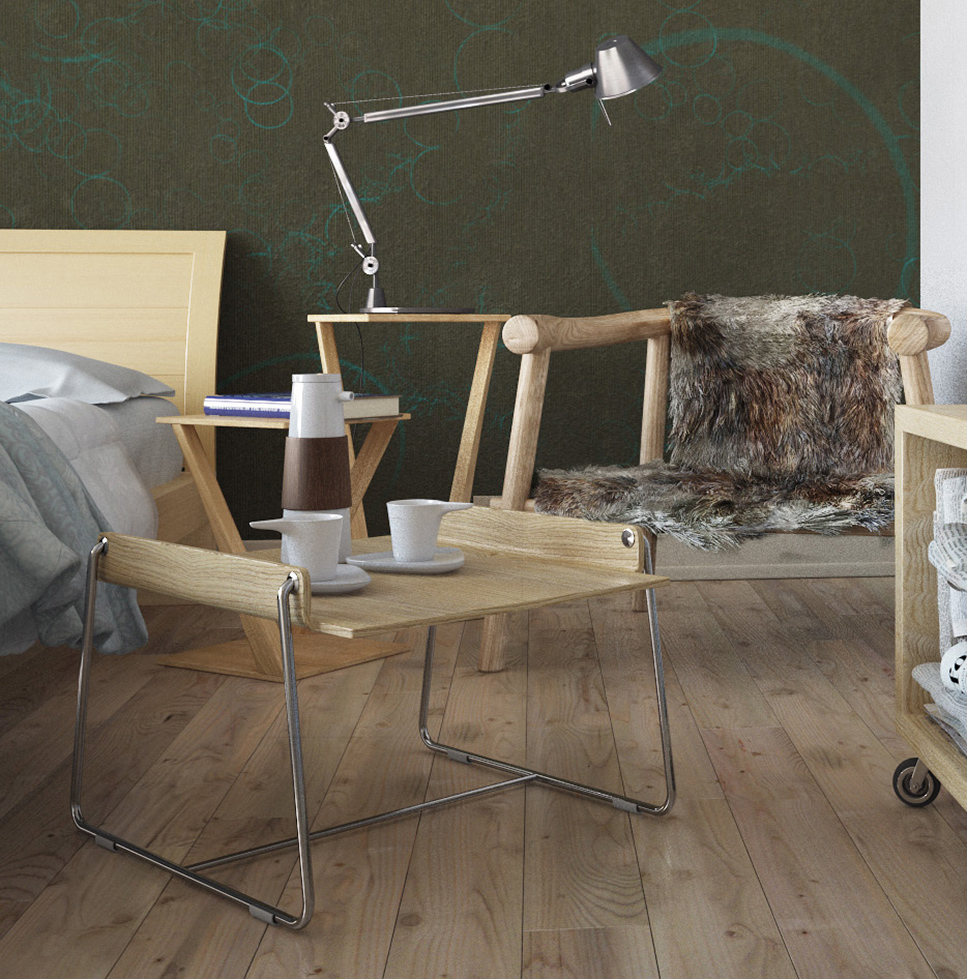
Here is the result after I styled it:
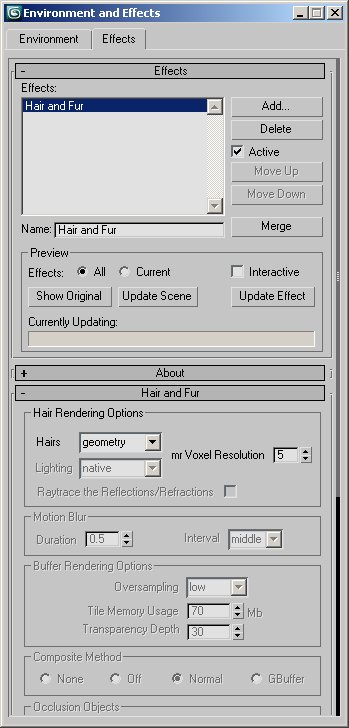
Don't forget to turn on the Hair-Fur effect from Effects rollout. You
can disable this to save RAM when the fur object is not in the visible
POV.
My target was a sunny look for my Bedroom. I didn't need to re-design
lighting but only tweaking exact position of sun and how it falls
into my room for fine-tuning and tweaking few camera shutter-speed
settings. So there is not much to tell or show for this stage but I
wanted to include it to give idea of my workflow.
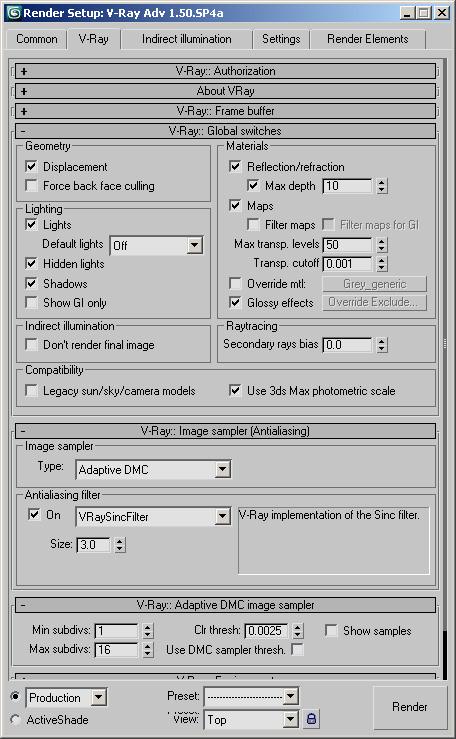
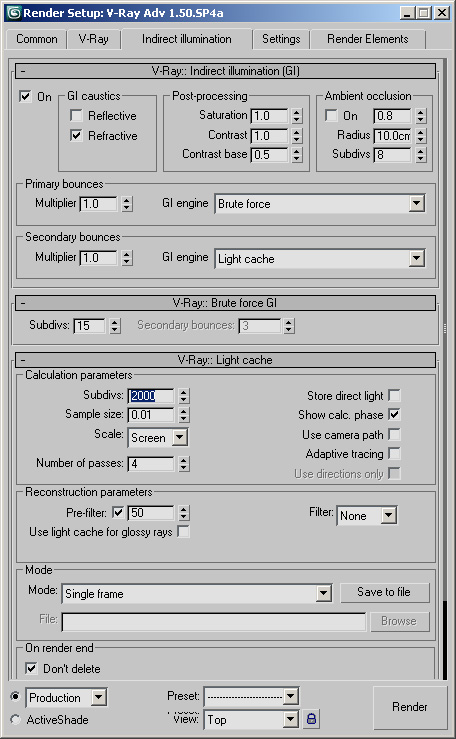
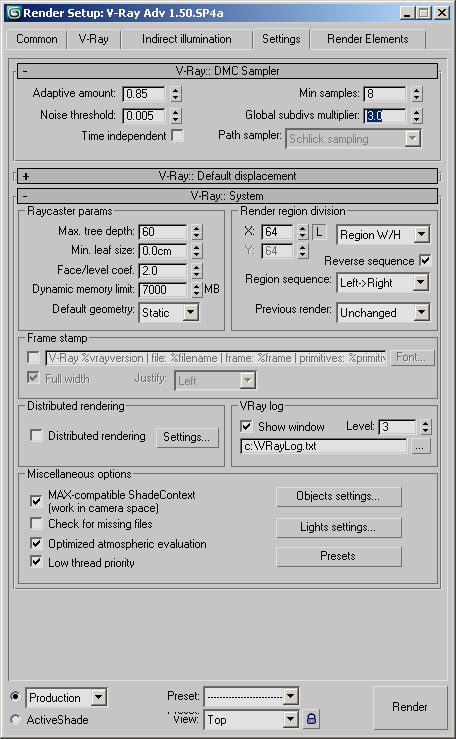
I rendered the scene with Vray which I like very much.
Here are the render settings: